

Paper Presentation Recording Instructions
IMPORTANT NOTE FOR REMOTE PARTICIPANTS
Registered authors attending online are required to deliver their presentations live during the conference stream and, in addition, submit a pre-recorded video as a backup in accordance with the instructions provided on this page.
The deadline for submitting pre-recorded video presentations:
7 March 2026
Video submission is only available after registration and camera-ready submission.
As announced, EAI RAIDS 2026 will be held on-site with the possibility to present remotely for authors who are unable to participate in the conference on-site. Online registered authors have to pre-record their presentations.
Details regarding the exact time and link to the online session will be announced after Camera-ready Deadline and we kindly ask you for patience as we put everything into place. In the meantime, please pay close attention to the instructions regarding the recording of your presentation below.
To give all presenters and viewers of EAI RAIDS 2026 the best possible experience, we kindly ask authors who will pre-record their presentations to comply with the technical specifications outlined below.
All video submissions will be verified for video/audio quality, and we strongly recommend submitting your presentation ahead of the submission deadline. This will allow time to re-record and resubmit the presentation if necessary.
- For video, capture a single screen with your presentation/slides in full screen. Advance the slides as if presenting normally. Video feed of the presenter (such as via webcam) is not required.
- For audio, we recommend using an external microphone whenever possible. Using the microphone built into your webcam and/or laptop is also acceptable, but please ensure that you minimise ambient noise.
- Use free screen capture software, such as ShareX (download at https://getsharex.com/) or similar. If using ShareX, please see the attached document “ShareX instructions.pdf” for instructions.
- If using other recording software, please make sure to record the video in 1080p resolution (or your maximum screen resolution) and at 30 frames per second in the MP4 video format.
- Your presentation should be at least 15 minutes in length but should not exceed 20 minutes. It must be voiced in clear and understandable English. The filename must be the title of your paper.
- Before submitting your presentation to us, please send it to your friends or colleagues for review and ask them to confirm that the slides are legible and that the audio is clear.
To submit your recording, please upload your video file to this shared Drive folder.
ShareX Instructions:
1. Download ShareX from https://getsharex.com/, install, and run the program. The installation or the initial setup will ask you to download “ffmpeg.exe”. Allow it download.
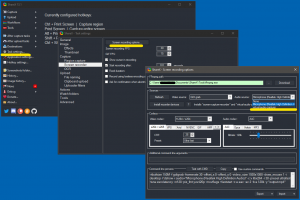
2. To make sure that the recording is picking up the sound from your microphone (see Screenshot 1):
a. Go to “Task settings” (highlighted),
b. Select “Screen recorder” from the left panel,
c. Click the “Screen recording options” button (highlighted),
d. In the Sources section, click the drop-down menu “Audio source” and select your microphone (highlighted). Your selection may differ slightly from that in the screenshot.
e. You may now close all options windows
3. To start recording:
a. Go to your Desktop (minimize all open applications).
b. Open ShareX.
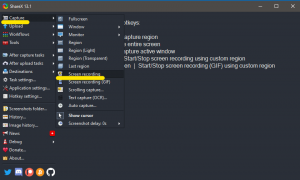
c. Click “Capture” in the top left (highlighted) and select “Screen recording” (see Screenshot 2)
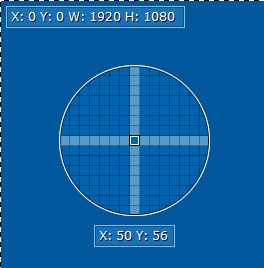
d. ShareX will now ask you to specify the recording region of your screen. To record the full screen (see Screenshot 3), navigate the target to one of the top corners of the screen until W: and H: read 1920 and 1080, or your maximum screen resolution.
Please note: full screen selection is only possible when all applications are minimized (see step 3 a.)
e. Once you have selected the screen region, ShareX will begin recording immediately. This will be signified by the red dot in your taskbar (bottom left corner, see Screenshot 4). To stop recording, click the red dot once. Your video file will be saved automatically.

![]()

